How to Test Seedream 5.5 Across 100 Image Edits
Follow a 100-round Seedream 5.5 editing test with a reference image, exact checkpoint times, a scoring rubric, and a five-round product photo workflow.
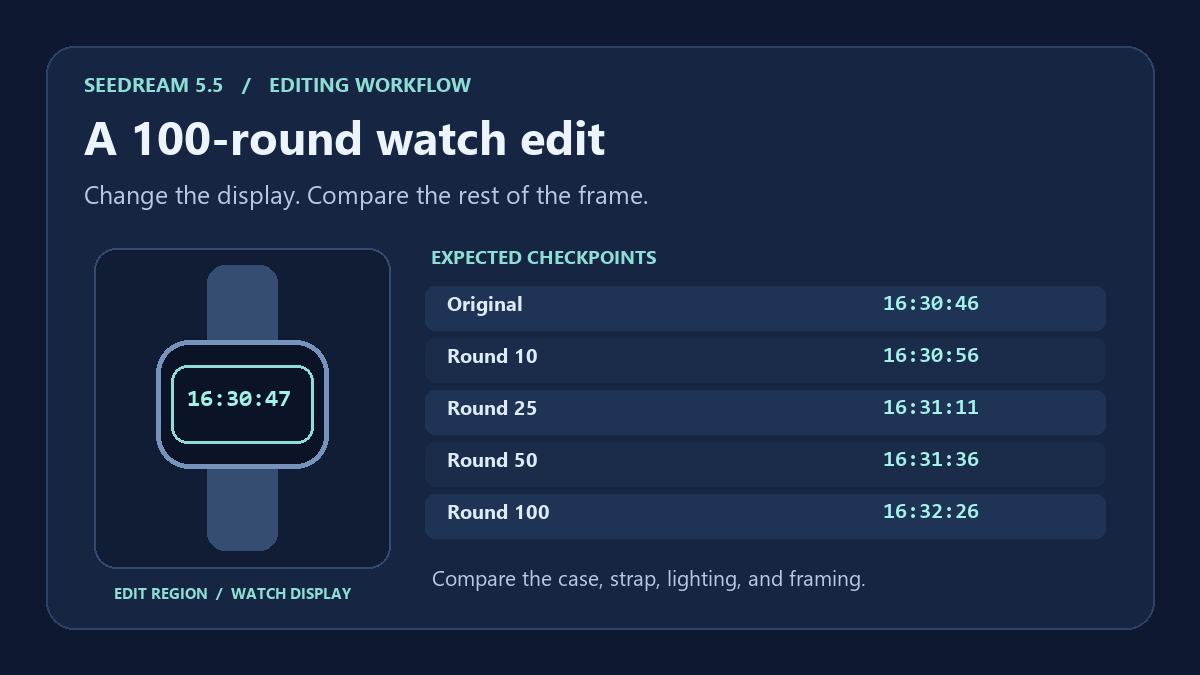
Changing a single digit on a watch is a small edit with a clear pass condition. Run the same kind of edit repeatedly, using each export as the next input, and the task becomes a way to measure drift. A softened cuff, a wider watch case, or a shifted tabletop edge can carry forward from one round to the next. The workflow below gives you exact target times, a scoring method, and a shorter product photo test you can run first.
Start with a watch photo and a fixed edit area
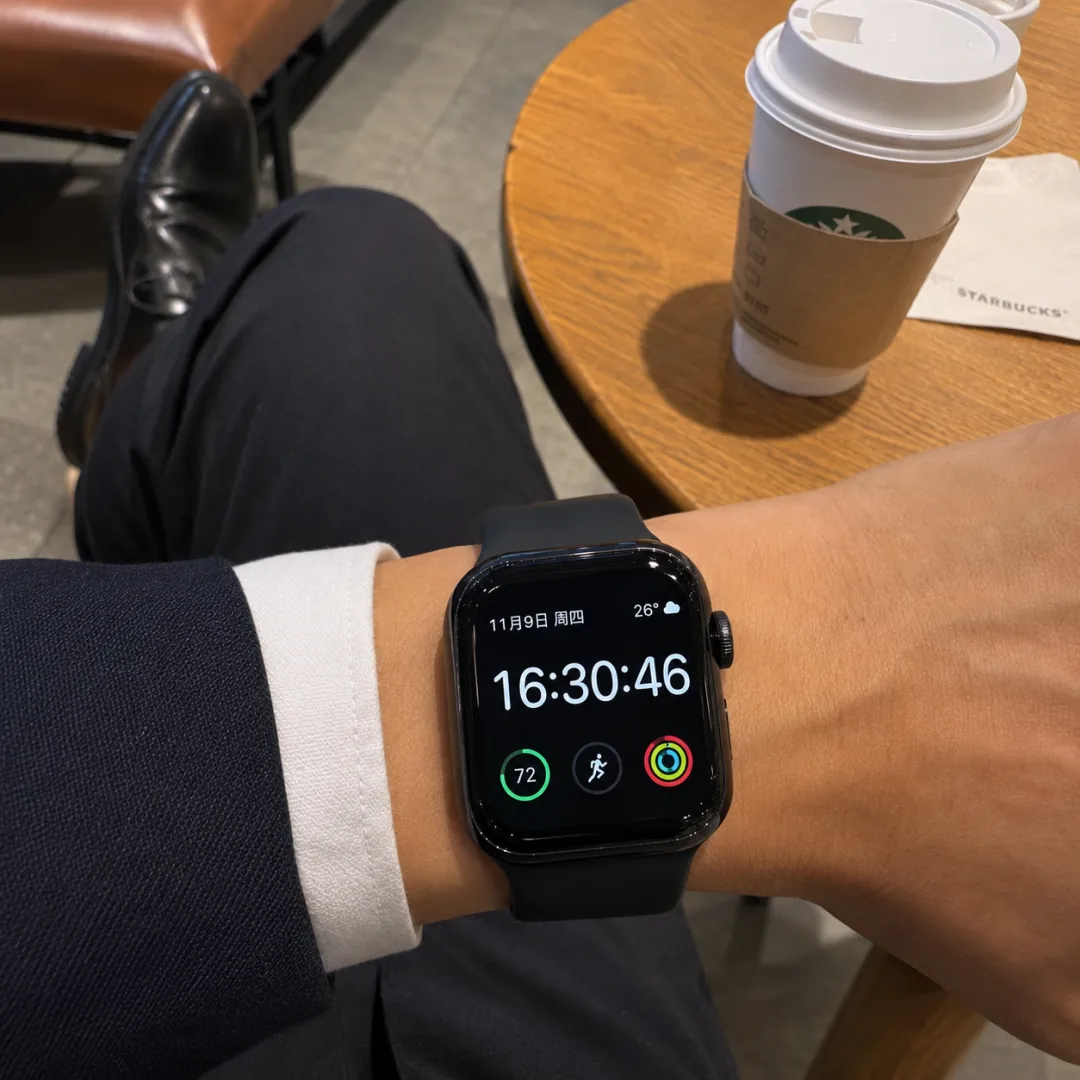
Round 0 reference. The watch reads 16:30:46. The smaller date and weather indicators, the three circular icons, the white cuff, and the cup stay outside the requested edit.
- Save the starting image as
round-000and keep it available throughout the test. The watch should be sharp enough that you can read all six time digits at the original scale. - Mark the time readout on a separate copy for reference. If your editing interface supports a mask, keep it tight around the digits and use the same region for every round. Save the reference copy separately from the clean input.
- Fix the aspect ratio and export dimensions. Use the same editor, model version, and file format for the full chain. A lossless export is preferable when you plan to compare pixel differences.
- Run one trial edit before starting the chain. Check whether the interface preserves the canvas and whether the digits remain readable. Use the original again to start the scored run.
Use an exact target time for each round
For the first edit, enter the complete time so the model has a target even if the starting digits are hard to interpret.
Change only the large time digits on the smartwatch to 16:30:47. Preserve the digit style and alignment. Keep the smaller date and weather text, the three circular icons, the watch case and strap, the cuff, the coffee cup, the lighting, and the framing as they are.
For round 2, upload the round 1 export and change the requested time to 16:30:48. Repeat with the same wording and one new target per round. Derive the target by adding the round number in seconds to 16:30:46, with normal minute rollover. If an output shows the wrong time, record that error and continue with the scheduled target in the next prompt. For a strict test, use the first output from each round and record failed requests separately.
| Round | Expected display |
|---|---|
| 0 | 16:30:46 |
| 1 | 16:30:47 |
| 10 | 16:30:56 |
| 14 | 16:31:00 |
| 25 | 16:31:11 |
| 50 | 16:31:36 |
| 100 | 16:32:26 |
Name the outputs in sequence and log the requested time, observed time, preservation grade, and any retry. The table gives expected values for checking your exports. Your results depend on the images and editing settings you use.
Score the edit and the rest of the frame separately
Time accuracy is a pass when the entire display matches the requested HH:MM:SS at a readable size. Mark missing, duplicated, or ambiguous digits as a fail. In a full run, report how many rounds passed out of the number of completed edits. If you check only selected exports, report the number of checkpoints reviewed.
Frame preservation can use this three-point scale. Set the same thresholds before you compare runs.
| Grade | What to look for outside the time digits |
|---|---|
| 2 | The watch outline, icons, cuff, cup, and framing look unchanged at 100% zoom. |
| 1 | A small change appears at 100% zoom, such as softer fabric texture or a slight change in the glass reflection. |
| 0 | A visible object moves, changes shape, disappears, or gains new details. A changed crop also earns a 0. |
Use the same zoom and toggle between the export and round-000. Inspect the watch case edges, the cuff seam, the rim of the cup, and the tabletop grain in that order. Then compare against the previous round to identify when a new change appeared. An opacity overlay helps with alignment. A difference view is useful when dimensions and framing match, although compression and color conversion can still introduce small differences across the frame.
Two watch-edit previews from the same starting image
The previews below show how to apply the preservation rubric. Their exact round numbers are unavailable. Use the round 0 photo to inspect changes outside the digits, and compare matching rounds when you run a model comparison.
GPT Image 2.6 preview
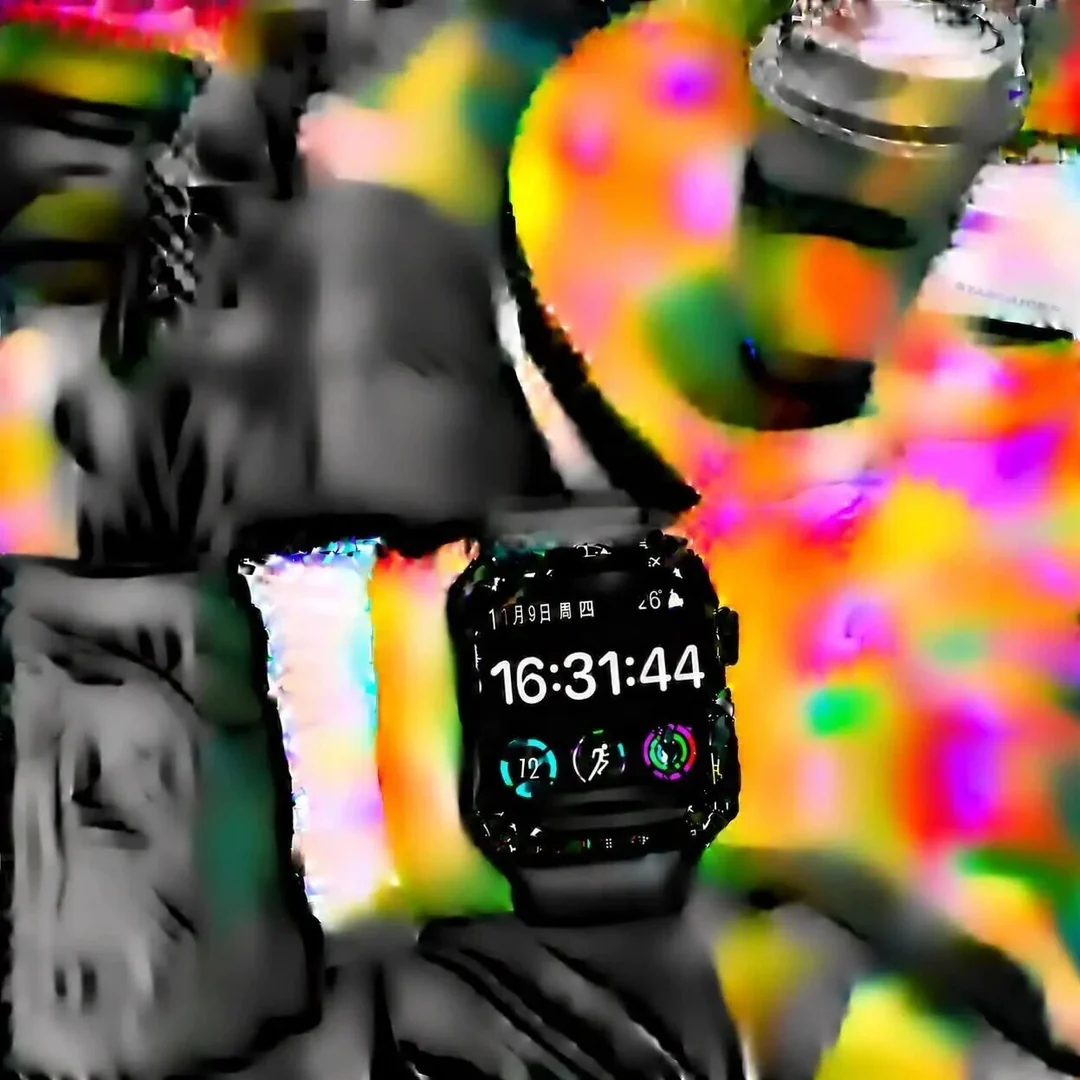
The time 16:31:44 is readable. Large color patches and smeared edges extend across the arm, sleeve, cup, and tabletop. Those changes are outside the requested edit area and earn a preservation grade of 0 under the rubric above.
Seedream 5.5 preview
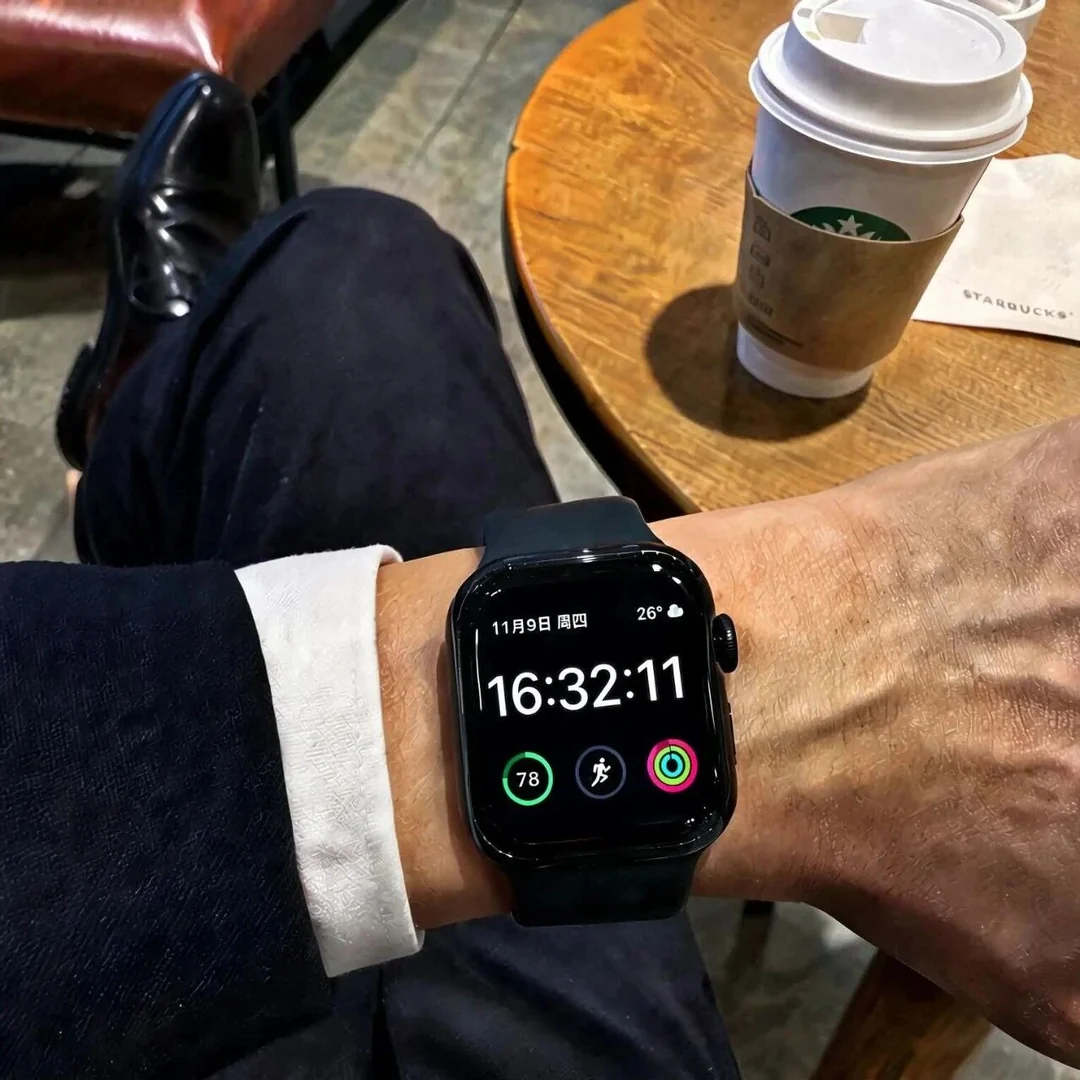
The display reads 16:32:11. The cup, cuff, and tabletop retain their overall shapes, while the left circular indicator changes from 72 to 78 and the skin texture looks stronger. Log these separately from the time reading so a recognizable frame does not hide changes to small details.
Find out whether errors accumulate
At rounds 10, 25, and 50, run the same target prompt once more from the original image and save those outputs separately. Compare each control with its matching chain output. If the chain shows a larger shift at the cuff or cup while the control keeps those regions stable, check when that shift first appeared in the saved chain. If both versions change the same area, try a tighter mask or revise the preservation instructions.
For a production job, go back to the last approved export when drift becomes visible. For the strict test, keep that recovery attempt outside the scored sequence. If you compare editors, match the input, target times, dimensions, and number of attempts, and repeat the test on a second scene before treating one run as representative.
Run a five-round product photo test
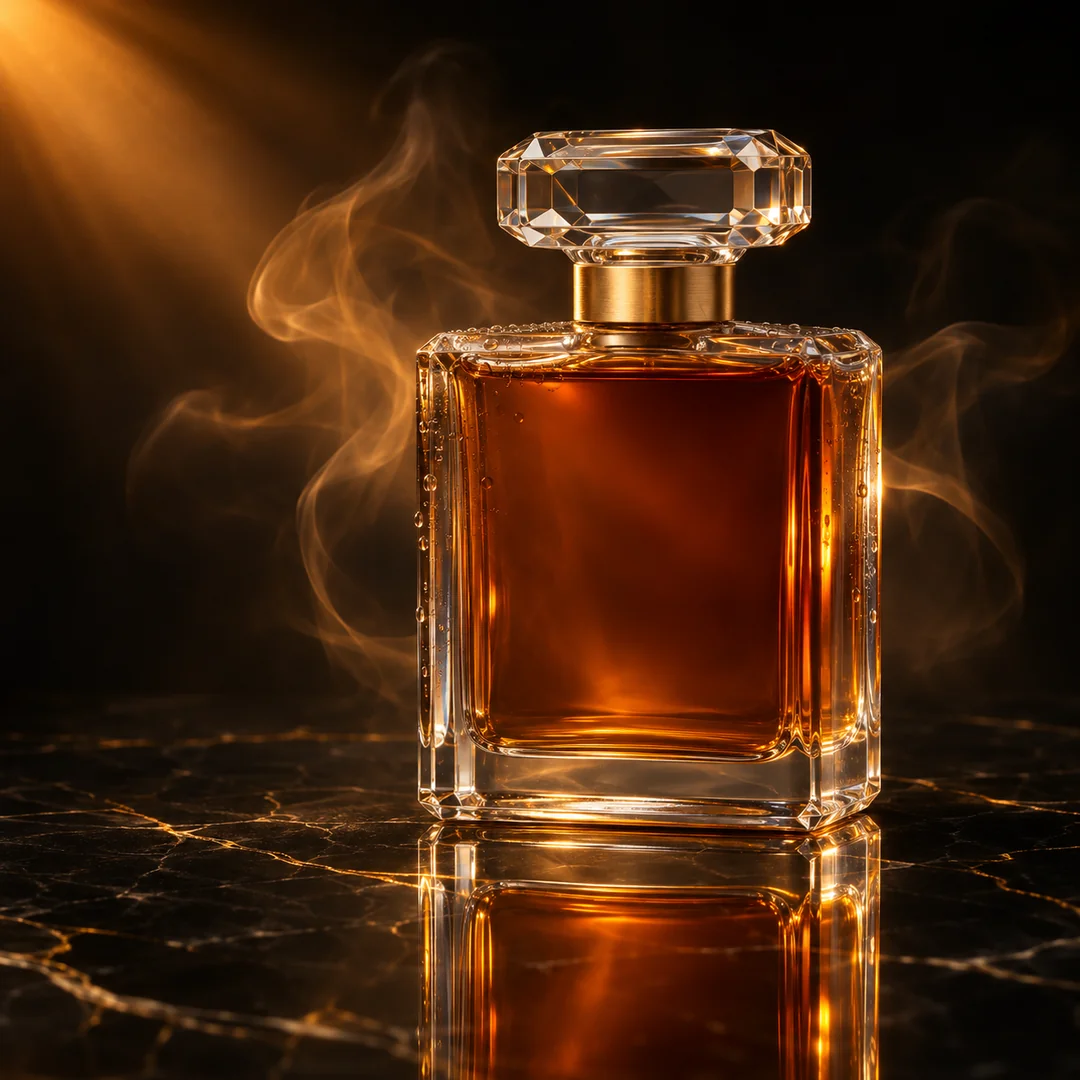
Product photo reference. Use the bottle outline, gold collar, marble edge, and reflection as fixed landmarks.
Start with a product photo whose edge is easy to trace. A branded bottle is useful when small print matters. The unbranded example above makes it easy to check glass edges and reflections. Mark the upper backdrop as the editable area and leave the tabletop and its reflections outside it.
Change only the dark backdrop behind the bottle to muted slate blue. Keep the amber liquid, cap, gold collar, highlights, bottle outline, dark marble, contact shadow, and reflection in place. Preserve the existing camera angle and crop.
For the remaining rounds, try muted plum, deep olive, warm charcoal, and smoky taupe. Update only the requested color and use the preceding output each time. Review the bottle outline at the shoulder and base, then check that the gold collar retains its width and the tabletop reflection lines up with the bottle. If the bottle has a label, compare the spelling, line breaks, and position with the original after every edit. Record any color cast on the glass or marble separately from the requested change to the backdrop.
Use the original for independent variants
For five campaign colorways, start each variant from the same approved image. For a sequence where each edit builds on the last, save a new approved checkpoint after each accepted change. When packaging or typography must be exact, composite the approved product layer over the edited background and inspect the contact shadow at the final export size.
Try a single edit in the Seedream 5.5 editor, or adapt another brief from the Seedream 5.5 prompt examples. See the perfume photo comparison for the product reference and its original prompt.