Seedream 5.5 Layer Decomposition: Download 4 Editable PNG Layers
See how Seedream 5.5 separates a fragrance campaign into a studio backdrop, stone plinth, gold ring and transparent perfume bottle. Inspect the real outputs and try the workflow.
Original image and four outputs
The source is a 4:3 fragrance campaign. Layer decomposition returns a cleaned backdrop plus three separate objects. Switch to Layers and select an object to inspect it. The download links open the full-size PNG files.
One image. Every layer.
A fragrance campaign, deconstructed. Explore the backdrop, sculptural objects and transparent product layer — generated and separated with Seedream 5.5.
Upload your own image to try these instructions.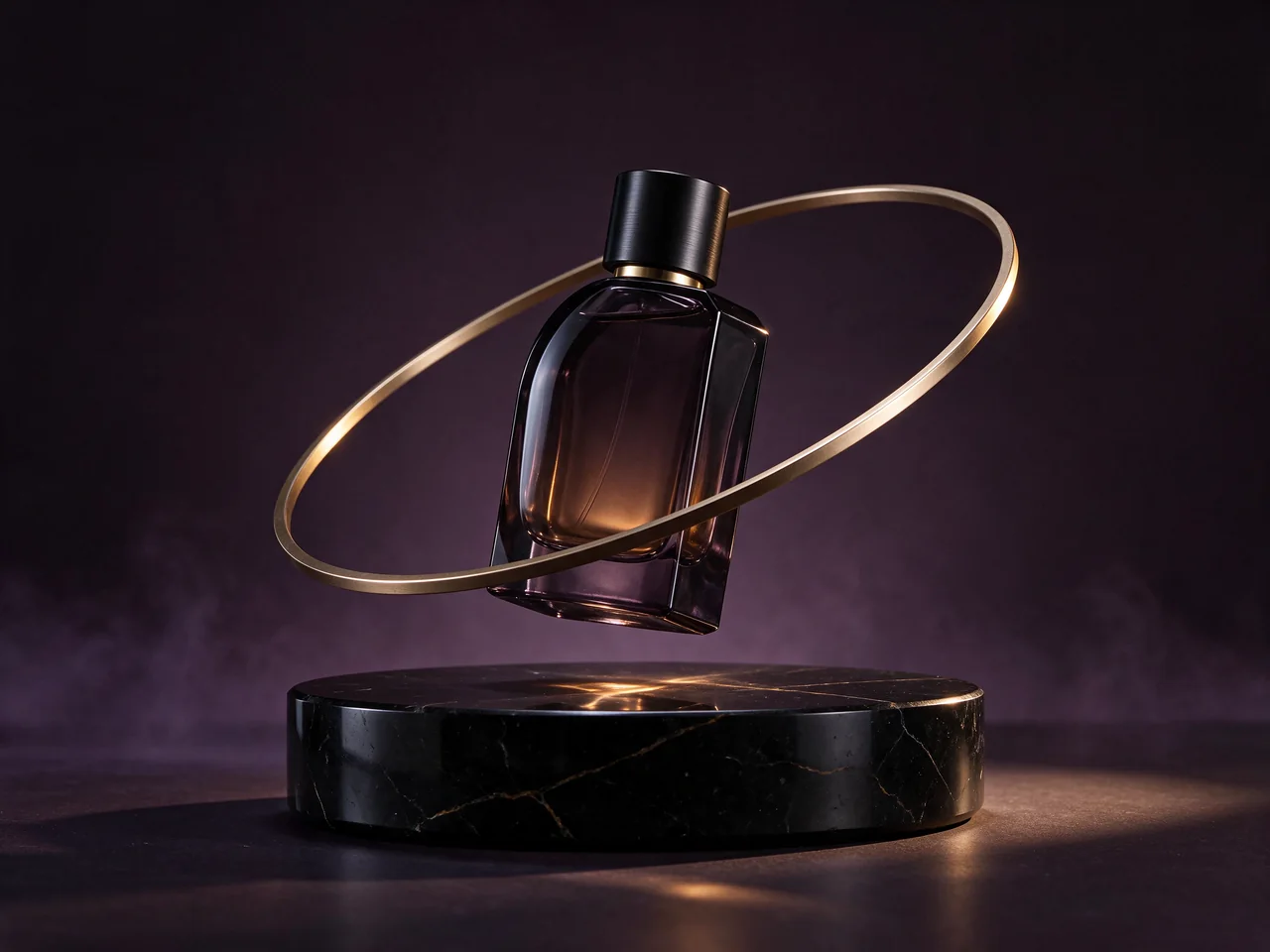
How to separate a product image into layers
- Start with a product shot where each object has a clear outline. Upload one source image in Layer decomposition mode.
- Describe each part to extract, including objects that overlap. For this example, set the output limit to four. The backdrop counts as one output.
- Download the PNGs and check the glass and ring edges against light and dark backgrounds. Use the source image to align the elements when you composite them.
Exact prompt used
Separate the complete perfume bottle with its cap, the champagne-gold elliptical ring, and the black obsidian stone plinth into three independent transparent RGBA layers. The fourth output is the clean studio backdrop and illuminated floor with those three objects removed. Preserve the original 4:3 canvas, object sizes, colors, materials and exact positions. Include no extra objects or text. Return the base first, then the plinth, then the ring, then the bottle.For a new cutout made directly from text, see the transparent PNG guide. To compare two generators on a fragrance brief, see the same-prompt perfume test.
Try layer decomposition
Load the example settings from the showcase above, then upload your own image.