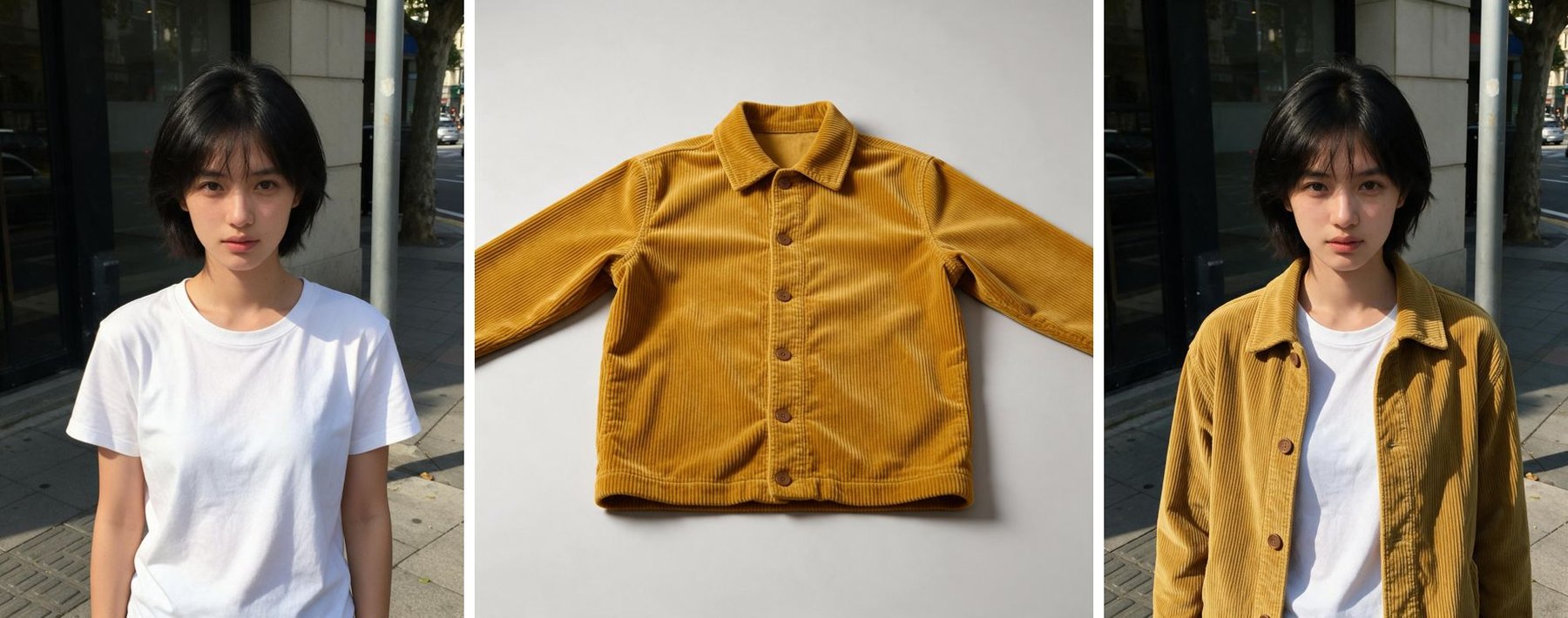
You can put a piece of clothing from one photo onto a person in another photo without changing their face. This guide walks through one real edit, made on this site with Seedream 5.0 Pro, and shows the inputs, the prompt and the result as they came out.
Left: Image 1, the person. Middle: Image 2, the jacket. Right: the result, first try, not retouched.
What you need
- Image 1: a photo of the person. A clear face and a plain pose work best.
- Image 2: a photo of the clothing on its own. A flat-lay or product shot on a plain background makes it easy for the model to see the shape, color and texture.
Step by step
- Open the generator and switch to Edit.
- Upload the person photo first and the clothing photo second. The editor names them Image 1 and Image 2, and you can type
@to insert those names into your prompt. - Choose Seedream 5.0 Pro at 2K. In our same-prompt test it was the most careful with details, which matters for faces.
- Write the prompt. This is the exact one we used:
Put the jacket from Image 2 on the woman in Image 1, worn open over her t-shirt. Keep her face, hair, pose and the street exactly the same.
- Generate. The button shows the credit cost before you click. If the image fails, the credits come back automatically.
What changed and what didn't
- Kept: her face, short black hair, expression, pose and the street behind her, down to the pole and the trees.
- Changed: the mustard corduroy jacket, now open over the white t-shirt as the prompt asked. The cord texture, collar and brown buttons match Image 2.
- Worth noting: the jacket's color came out a little lighter than in the product shot, because it took on the street light. For exact color matching, add "keep the jacket's exact color from Image 2".
Tips that make face-preserving edits work
- Name what must not change. "Keep her face, hair, pose and the background exactly the same" does more than any style word.
- Say how it's worn. "Open over her t-shirt", "buttoned" or "sleeves rolled up". Otherwise the model decides for you.
- One change per edit. Swap the jacket first, then change the background in a second edit. Asking for both at once makes drift more likely.
- Refer to the images by name. "The jacket from Image 2" is clearer than "this jacket".
- The same method works for backgrounds. Upload one photo and write: "Replace the background with a quiet beach at sunset. Keep the person, their face, clothes and pose exactly the same."
Try it
Upload your own photos in the editor. New accounts get free credits to start, and Seedream 5.0 Pro accepts up to 5 reference images per edit (Lite and Flash accept up to 10).
Read more
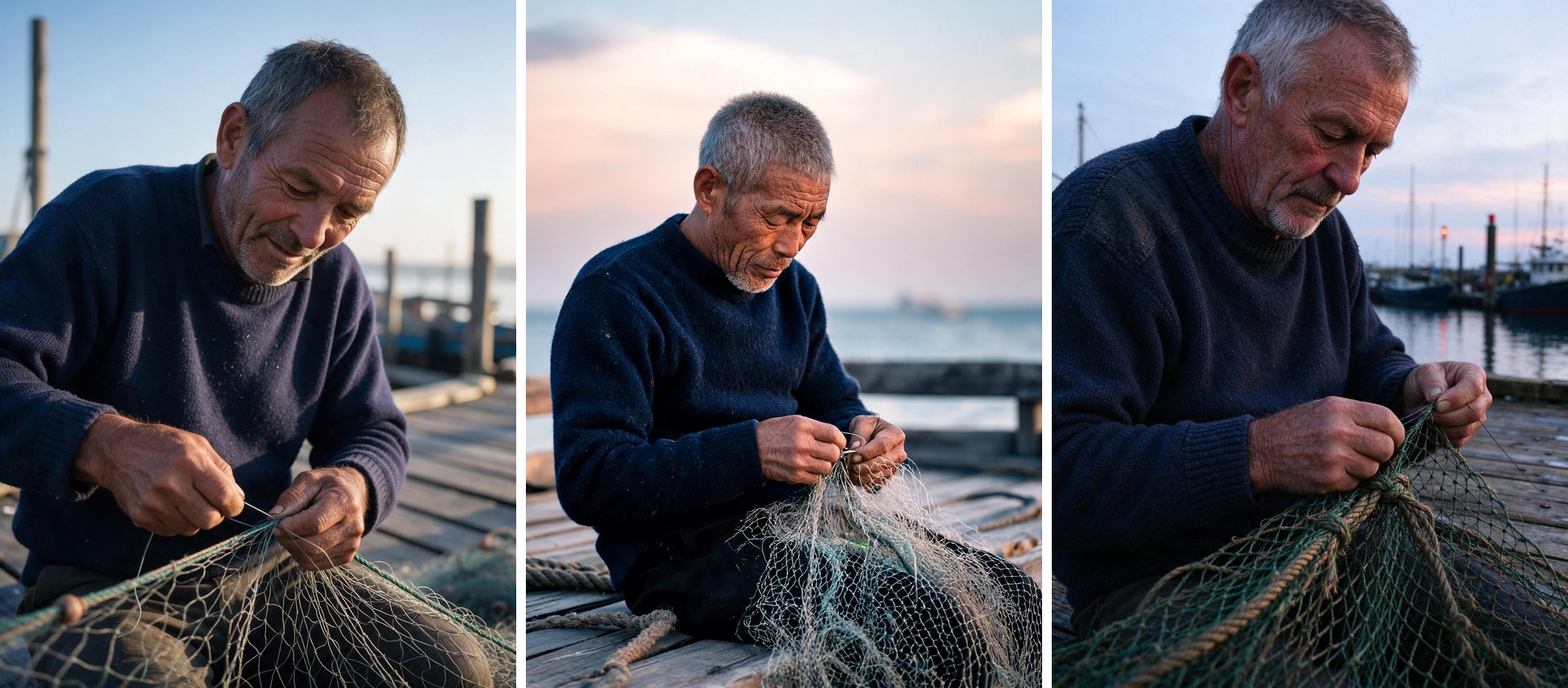
Is Seedream 5.5 Out? Where You Can Actually Use It (November 2026)
Seedream 5.5 is only in ByteDance's Dreamina app for now, with no public API. Here's where it runs, what the API options cost for Seedream 5.0, and how to check whether a site really runs 5.5.
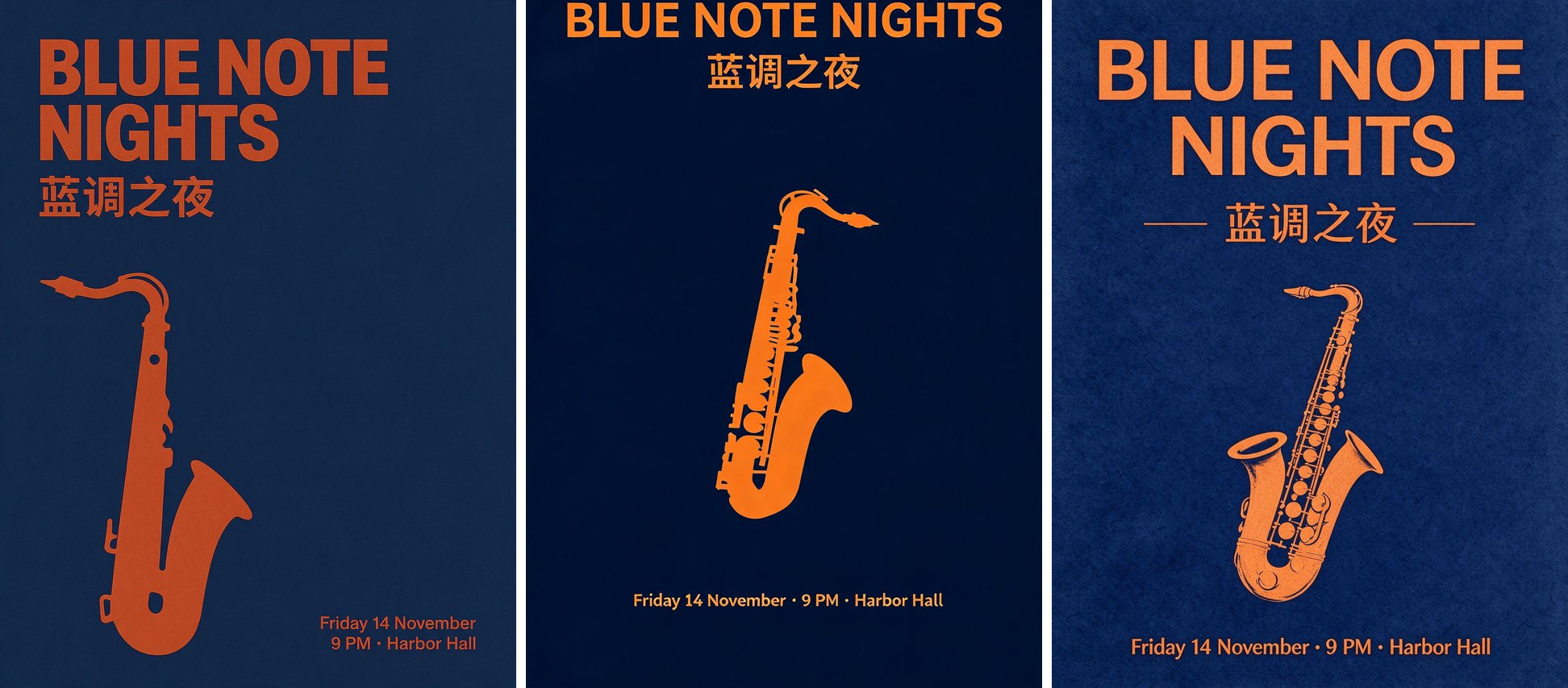
Seedream 5.0 Pro vs Lite vs Flash: Same Prompts, Real Results
We ran three identical prompts through Seedream 5.0 Pro, Lite and Flash at 2K: a typography poster, a photoreal portrait and a recipe infographic. Full images, timings and per-image prices.